Part 4 · Comfort, Lighting & Your Truck
About your truck
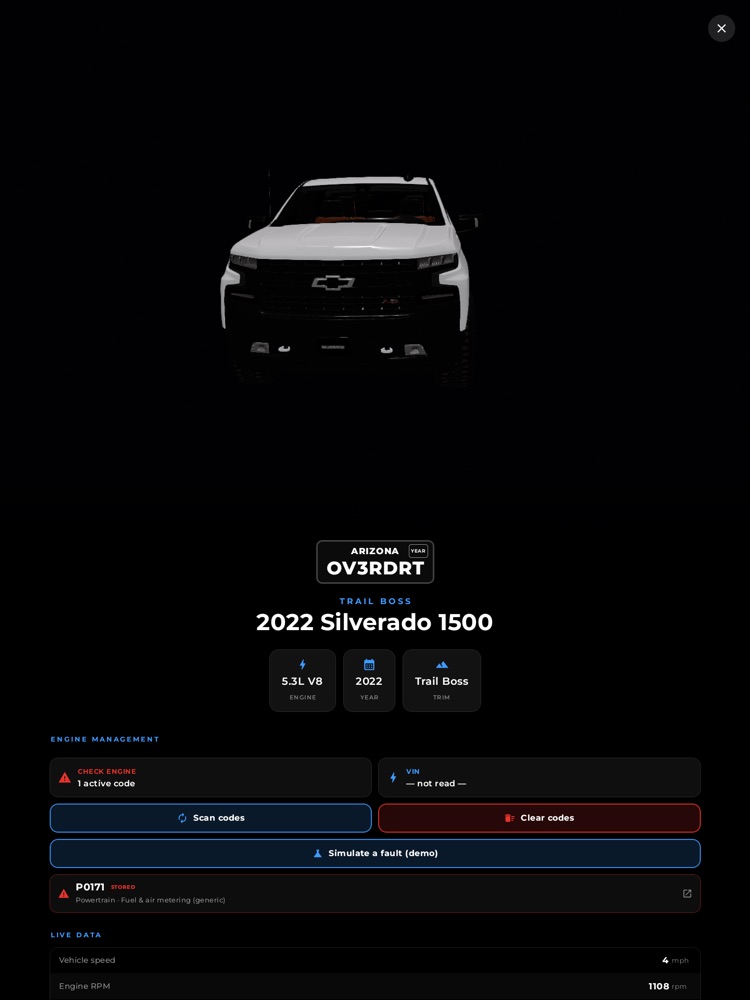
The About page: a spinnable 3D model of your truck, the plate, specs, and engine-management tools.
Tap the gold Chevrolet bowtie at the top of the screen and your truck rises onto a dark, cinematic stage — a full 3D model of your rig that drops in, lands with a puff of dust, and slowly spins on a turntable. Below it sits a clean spec sheet: your license plate, trim, year, engine, and your own personal write-up. It's the "hero shot" of your truck, and a quick place to check its details and health at a glance.
Where to find it: Header (top of screen) › the gold Chevy bowtie in the center
When you'll use it: Showing off your build to a passenger, glancing at your trim/engine details, or checking your truck's health — trouble codes, live engine data, and (with the right hardware) tire pressures and more, all on one page.
The screen, part by part
The page fills the whole screen over a black background and scrolls, with the 3D truck up top and the details underneath.
- The 3D truck (top half). A full model of your Silverado, painted white to match a real Trail Boss. When the page opens it falls from above, lands hard (kicking up a dust cloud), the suspension bounces to settle it, and then it begins a slow, continuous spin so you see it from every angle.
- Touch to look around. The truck is interactive — drag one finger across it to orbit the camera and spin it to any angle you like, and pinch to zoom in or out. It keeps its gentle turntable motion the whole time; your finger just steers the view.
- License plate. Hung right under the truck, rendered as a black plate with "ARIZONA" across the top and your plate text big and white below. It shows whatever plate you've set (out of the box it reads a sample).
- Trim line. A small accent-blue label in all caps just below the plate — your truck's trim (for example, TRAIL BOSS).
- Year + model headline. The big white title, like "2022 Silverado 1500."
- Three spec chips. A row of three rounded tiles, each with an icon, a value, and a label:
- Engine (lightning-bolt icon) — your engine, e.g. "5.3L V8."
- Year (calendar icon) — your model year.
- Trim (mountain icon) — your trim level.
- Your write-up. Below the chips (and the health panels, if shown) is your own paragraph about the truck — whatever you've written about your build. Out of the box it's a friendly starter blurb you can replace.
- "Edit these details in Settings" note. A dim reminder pointing you to the gear icon at the top-right to change any of the above.
- 3D-model credit. A small line at the very bottom crediting the artist behind the 3D truck model. Nothing to act on — just proper attribution.
- Close button (X). A round button in the top-right corner closes the page and returns you home. You can also use the hardware back button.
Health panels (shown when a diagnostic adapter is connected). Between the spec chips and your write-up, this page doubles as a truck health readout. When an OBD-II adapter is paired, you'll also see:
- Engine Management. A "No Faults / Check Engine" status, your VIN, and buttons to Scan codes and Clear codes. If any trouble codes are present, each one is listed and can be tapped to look it up online.
- Live Data. A spreadsheet-style table of live engine readings — speed, RPM, coolant temp, engine load, throttle, intake and ambient temps, fuel level, voltage, fuel trims, and more — filling in as data flows. Anything not being read shows a dash (—).
- Body Bus. Deeper truck signals your factory system normally keeps to itself — gear (Park/Drive/Reverse), drivetrain mode (2H / 4H / 4L), parking brake, turn signals, and, when the sensors are awake, things like oil life, odometer, tire pressures, and roll/pitch angle.
How to spin and inspect your truck
- Tap the gold bowtie at the top center of the screen.
- Watch the truck drop in and settle, then start its slow spin.
- Drag one finger across the truck to rotate it to any angle.
- Pinch with two fingers to zoom in for a close look or out for the full rig.
- Tap the X in the top-right (or press back) when you're done.
How to change what this page shows
All the details on this page — plate, trim, year, model, engine, and your write-up — are edited in one place:
- Tap the gear icon at the top-right of the screen to open Settings.
- Go to the Vehicle tab.
- Update any field: Plate, Model, Trim, Year, Engine, and the About write-up (there's also a live plate preview as you type, plus fields for your name, tires, and any added lift).
- Tap Save. Reopen the About page to see your changes.
What you need
The About page itself works on its own — the 3D truck, plate, specs, and write-up need nothing but the app, and everything is editable in Settings › Vehicle.
The health panels (Engine Management, Live Data, Body Bus) need a supported OBD-II adapter plugged into your truck and paired in Settings. Until one is connected, the live readings simply show dashes and the status stays neutral — nothing is faked. Some readings, like tire pressures and oil life, only appear once you're driving and the truck's sensors wake up.
Tips & good to know
- It's a real model, not a photo. The white paint and the spin are the same live 3D model used as your position marker on the maps — so what you rotate here is genuinely your truck's shape.
- No accidental dismissal. Because the truck is touch-interactive, tapping the truck won't close the page — only the X button or hardware back does. That way you can grab and spin it freely.
- The plate lives here now. Your license plate is displayed on this page (under the truck), not in the top header, keeping the header clean.
- Your tires and lift matter elsewhere. The tire size and added-lift you enter in Settings › Vehicle aren't just for show — they feed the XDirt off-road cockpit's trail go/no-go calculations, based on factory Trail Boss specs. They don't appear on the About page itself.
- Dashes are honest. Anywhere you see "—" in the health panels, that reading simply isn't available yet (no adapter, or the sensor hasn't reported) rather than a placeholder number.