Part 3 · Media & Phone
XLink — wireless CarPlay & Android Auto
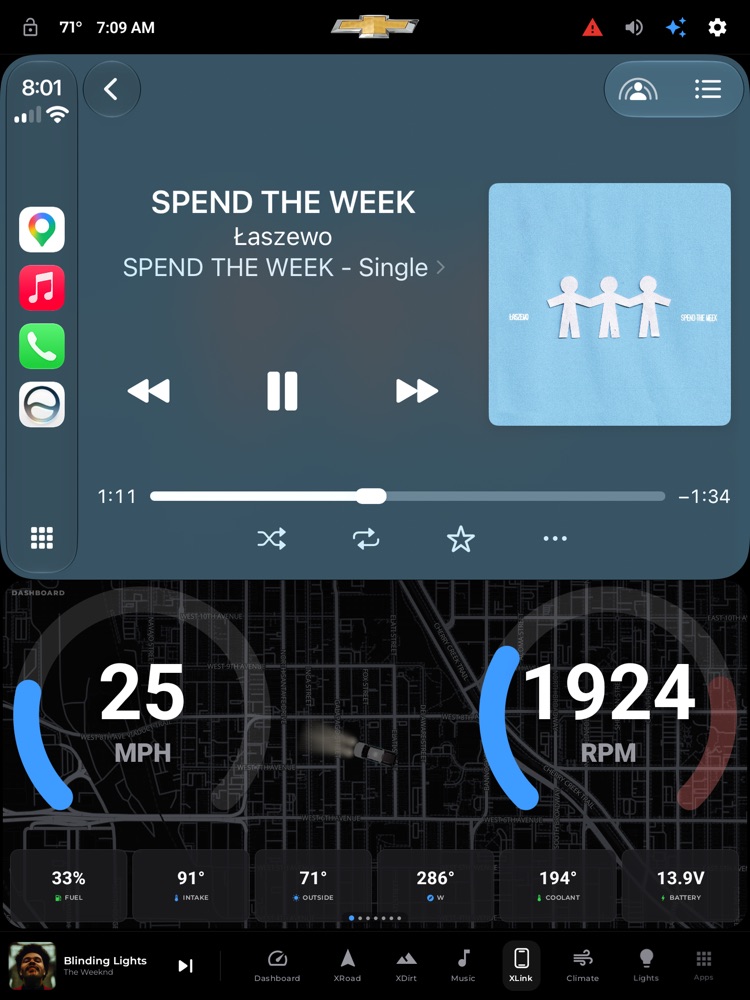
XLink with CarPlay connected, the widget deck below the projection band.
XLink puts Apple CarPlay and Android Auto right on your 15.6" screen — your phone's maps, music, messages, and Siri or Google Assistant, all touch-driven from the dash. What makes XLink special is that CarPlay doesn't have to take over the whole screen: you choose how much room it gets, and xOverland fills the rest with its own live truck widgets. So you can run Waze up top and still see your speed, tire attitude, and climate right below it.
Where to find it: Bottom dock › the iPhone icon tab (labeled XLink).
When you'll use it: Any time you want your phone's apps on the big screen — turn-by-turn in Google Maps or Waze, your podcast queue, hands-free texts, or Siri/Assistant — while keeping xOverland's gauges and controls glanceable at the same time.
The screen, part by part
XLink is built as one clean black "letterbox" frame with two stacked areas inside it:
- The phone screen band (top). This full-width strip is where CarPlay or Android Auto actually appears. Everything you'd normally tap on a CarPlay screen — apps, the Now Playing view, Siri, the dialer — you tap right here. It supports multi-touch, so pinch-to-zoom in Maps works just like on your phone. A slim, always-black border wraps the band on all four sides so it reads as a tidy inset picture in both day and night modes.
- The widget deck (below the band). The space under the phone band is filled with xOverland's own swipeable live widgets — full versions of the truck pages, shrunk to fit. Swipe left/right to move between them:
- Dashboard — big MPH and RPM gauge rings over a live map, plus a row of your configured metric tiles (location, tire pressures, etc.).
- XRoad — a live street map with your speed, the posted speed limit sign, compass, altitude, and zoom buttons; if you're navigating in xOverland it also shows the next turn and trip ETA.
- XDirt — the off-road view with a topo map, an artificial-horizon attitude ball, and live pitch/roll/grade readouts.
- Music — large album art and now-playing info with big previous / play-pause / next buttons.
- Climate — your heat/AC controls (and, on taller layouts, the airflow cab visual), so you can adjust temperature and fan without leaving XLink.
- Aux Lights — on/off switches for your auxiliary light channels (if you have a supported controller paired).
- A quiet "XPLAY" card — a distraction-free black resting page at the far end.
- Page dots. A small row of dots in a translucent pill sits at the bottom center of the deck, showing which widget you're on. The active dot is larger and colored in your accent.
- Status card (when nothing's connected). Before a phone is streaming, the band shows an honest status message with an icon (or a spinner) — never a fake CarPlay mockup. Depending on the situation it reads "No adapter detected," "Connecting to adapter…," "Connect your phone," or an error with a Retry connection button.
Note: the widget deck appears at every size except X-Large. At X-Large, CarPlay fills the whole screen and the deck is hidden.
How to connect your phone
- Plug your Carlinkit adapter into the head unit's USB port. The first time, the truck asks for one-time permission to use the adapter — allow it.
- Open the XLink tab (iPhone icon in the dock).
- The first time you connect a phone, follow the adapter's normal pairing:
- iPhone (CarPlay): the adapter creates its own Wi-Fi/Bluetooth link — accept the CarPlay prompt on your iPhone. After the first pairing it connects wirelessly on its own.
- Android (Android Auto): pair to the adapter over Bluetooth and confirm the Android Auto prompt; it then connects wirelessly.
- The band walks through "Connecting to adapter…" → "Connect your phone" → your phone's name ("Starting CarPlay…" / "Starting Android Auto…"), then goes live. It only shows the running screen once a real video frame arrives, so you never see a frozen fake-loaded state.
Once paired, XLink reconnects your phone automatically each drive — usually within a few seconds of getting in and opening the tab.
How to change how much screen CarPlay gets
- On the dock, press and hold the XLink (iPhone) tab. A centered "XLink" settings panel slides up.
- Under SCREEN SIZE, tap one of the size tiles. Each tile shows a little preview and the percentage of the screen the phone band will use:
- Slim (~18%) — a thin strip up top, maximum room for xOverland widgets below.
- Small (~30%)
- Medium (~60%) — the balanced default.
- Large (~80%)
- X-Large (100%) — CarPlay fills the whole screen; widget deck hidden.
- Tap anywhere outside the panel (or the X) to close it.
This is a true resolution change, not just a crop: your phone actually re-lays-out CarPlay/Android Auto for the new size (a wide strip UI when small, the full dashboard UI when large). Because of that, changing the size reconnects the phone — expect a few-second blank while it comes back at the new layout.
How to control music and see what's playing
- Whatever's playing through CarPlay/Android Auto flows straight into xOverland: the dock mini-player at the bottom of the screen and the Music page both show the current song, artist, and album art pulled live from your phone.
- The previous / play-pause / next buttons in the dock, on the Music page, and on the XLink Music widget all send commands back to your phone, so they control CarPlay directly.
- When the XLink Music widget is the visible deck page, the dock mini-player politely tucks away so the same song isn't shown twice.
- When you unplug the phone or the session ends, playback control falls back to your other source (Bluetooth, radio, or a music app) automatically.
What you need
- A supported Carlinkit CPC200-class adapter plugged into the head unit's USB port. XLink talks to the adapter directly — no rooting, just a one-time USB permission tap.
- A phone that supports CarPlay (iPhone) or Android Auto (Android), paired to the adapter as above.
- No adapter connected? The band honestly says "No adapter detected — Plug the Carlinkit into the head unit's USB port," with a Retry button. Plug it in and it starts on its own.
- Adapter present but phone not connected? It sits on "Connect your phone" until your phone links up.
Tips & good to know
- iPhone vs. Android differences. CarPlay and Android Auto both work great. There's one honest limit: the adapter needs a keyframe nudge for CarPlay, which XLink handles quietly in the background, so CarPlay stays smooth. Android Auto manages this itself.
- iPhone screen mirroring (experimental). A separate "iPhone screen mirroring" toggle appears in the settings panel only if your specific adapter reports that it supports mirroring. It mirrors your iPhone's actual home screen instead of CarPlay. Most common adapters (the standard CPC200-CCPA) don't offer mirroring, so the toggle simply won't appear — that's intentional, to protect the adapter. Android phone mirroring isn't offered.
- Your session survives leaving the tab. Switch to another xOverland page and your phone's audio keeps playing; come back and the picture returns instantly. XLink even remembers which widget you last had open in the deck.
- Day and night match automatically. CarPlay/Android Auto follow xOverland's day/night theme, so the phone screen dims and brightens along with the rest of the dash.
- Hot-plug friendly. Plug the adapter in or pull it out mid-drive and XLink reacts cleanly — it starts when connected and tears down when removed, without freezing.
- If a connection drops or an old adapter won't respond, XLink shows a clear "Connection lost" or "isn't responding" message with a Retry button instead of hanging — tap Retry or reseat the adapter to reconnect.
- Everything in the widget deck is live and usable while driving — the gauges show real truck data and the Climate/Aux Lights switches actually work, all with the big, fat-finger controls used throughout xOverland.