Part 6 · Service & Records
Service tools — maintenance, recalls & drive log
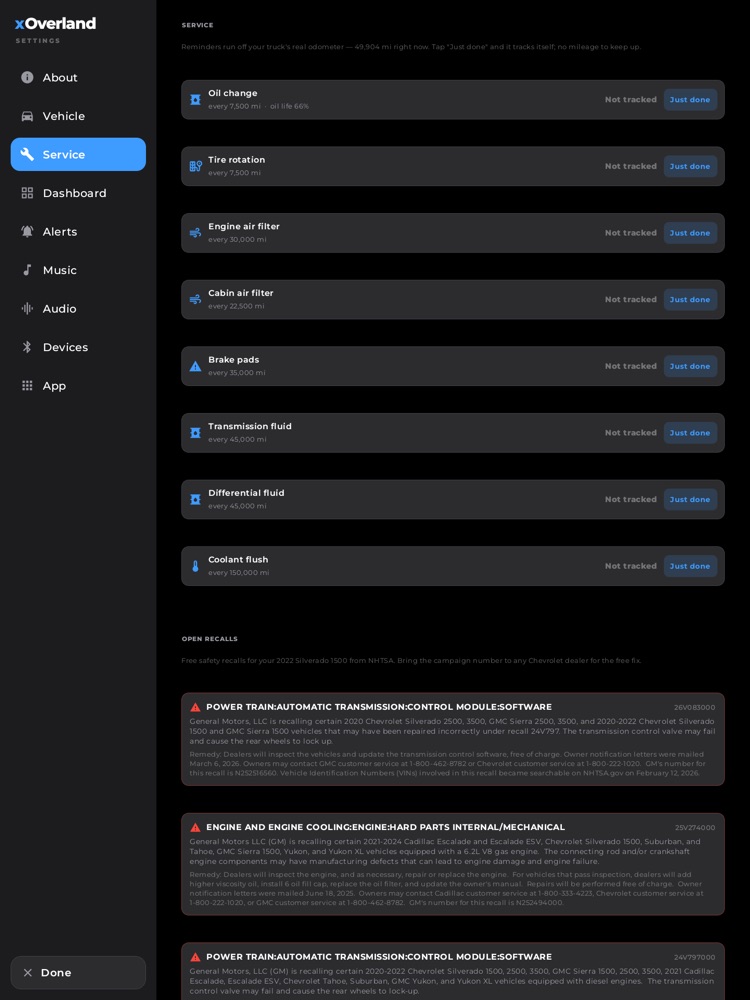
Settings > Service: the maintenance ledger and the NHTSA recall lookup.
The Service tab is your truck's own logbook. Because xOverland reads your real odometer straight off the truck, it keeps a maintenance ledger that reminds you when things are actually due (no mileage to type in), checks free government safety recalls for your exact year and model, and can record a whole drive so you can scrub back through the graph later to see exactly when — and where — something spiked.
Where to find it: Header › gear icon (top-right) › Service in the left menu. The drive-log recorder lives one tab over, under App (the "Drive Logs" section).
When you'll use it: After an oil change or tire rotation, to tap it as "just done" and forget about it. Before a long trip, to make sure there's no open recall on your truck. And any time you want to catch a gremlin — record a drive, then replay the graph to pin down when the coolant climbed or the oil pressure dipped, and where you were on the map when it happened.
The screen, part by part
Service tab — Maintenance ledger
- The odometer line at the top. A friendly summary that shows your truck's real current mileage (for example, "…49,904 mi right now"). Reminders count down from this live number as you drive. If the truck isn't connected yet, this line instead invites you to connect so mileage can be read automatically.
- The service item cards. One card each for the common jobs, in order: Oil change, Tire rotation, Engine air filter, Cabin air filter, Brake pads, Transmission fluid, Differential fluid, and Coolant flush. Each card shows:
- An icon and the item name on the left.
- A small line underneath telling you either the last time you logged it ("Last: 46,200 mi · Mar 4, 2026") or, if you've never logged it, the default interval it uses ("every 7,500 mi"). On the oil card, this line also shows your truck's live oil-life percentage ("· oil life 66%") when it's available from the truck.
- A bold status badge on the right that tells you where you stand at a glance:
- "In 3,200 mi" (green) — plenty of miles left.
- "Due soon" (amber) — within the last 1,000 miles.
- "Overdue 400 mi" (red) — past due, by how much.
- "Change now" (red) — the oil card shows this whenever the truck reports oil life below 15%, regardless of the mileage estimate.
- "Not tracked" (grey) — you've never logged this item, so there's nothing to count from yet.
- A "Just done" button on the far right. Tapping it stamps the current odometer and today's date onto that item and restarts its countdown. This button only appears when the truck's odometer is actually being read — if there's no connection, there's no mileage to stamp, so it's hidden.
Service tab — Open recalls
- A short explainer noting these are free safety recalls from the government (NHTSA) for your year and model, and that you bring the campaign number to any Chevrolet dealer for the free fix.
- A live status message, which will be one of:
- "Checking NHTSA…" while it looks yours up.
- A green "✓ No open safety recalls for your [year] [model]" if you're clear.
- "Couldn't reach NHTSA…" (amber) if you're offline or the lookup failed — reopen the tab once you have signal to try again.
- A red-outlined card for each open recall, showing the affected component, the campaign number (top-right of the card), a plain-language summary of the problem, and the remedy the dealer will perform.
App tab — Drive Logs
- A short description of what a drive log captures.
- A recording status line — "Not recording." when idle, or a red "● Recording — 42s" that counts up while a log is running.
- The Start / Stop button. A green "● Start log" begins recording; while active it becomes a red "■ Stop log".
- The saved-drives list. Each saved drive is a card with a timeline icon, the date and time it was recorded ("Thu Jul 3 · 4:18 PM"), and its length and size ("122s · 8 KB"). Tapping a card opens the replay graph. A small trash icon on the right deletes that log.
Drive-log replay screen
- A back arrow (top-left, circular) to return to the list, next to the drive's date/time and how many seconds were recorded.
- A row of signal chips (the legend). One chip per signal that was captured — MPH, RPM, COOLANT, TRANS, OIL PSI, LOAD, FUEL, VOLTS, ALT, THROTTLE, OIL °F, and GPS speed. Each chip has a colored dot, its name, and its value at the current cursor position. Tap a chip to add or remove that line from the graph (four are shown by default).
- The graph. A multi-colored line chart, one line per enabled signal, with a bright vertical scrubber line. Tap anywhere on the graph, or drag left/right, to move the scrubber — every chip's value updates instantly to that moment in the drive.
- The GPS track (shown only when location was recorded). A north-up map of the route you drove, with a dot marking exactly where you were at the scrubbed moment — so a spike on the graph lines up with a spot on the road.
Trip computer (shown on the Dashboard, powered by the Service engine)
The same fuel-economy brain behind Service also drives your trip computer. You'll see it on the Dashboard, not on the Service tab:
- Always-on cluster footer. Beneath the gauges, a quiet full-width row shows ODO (odometer), TRIP (miles this trip), FUEL (level, with distance-to-empty beneath), OUT (outside temp), and HDG (heading).
- Optional metric cards. You can add AVG MPG, RANGE MI (distance to empty), and TRIP MI cards to your Dashboard from the Dashboard settings tab, if you'd like them front and center.
How to log a completed service
- Open Settings (gear, top-right) › Service.
- Find the card for the job you just did — say, Oil change.
- Tap "Just done" on that card.
- The card immediately updates: it records today's mileage and date, and the status badge flips to a green "In N mi" counting down to the next one. From here it tracks itself as you drive — nothing else to do.
Logged something by mistake? Just tap "Just done" again the next time it's genuinely done to re-stamp it.
How to change a service interval
The ledger starts with sensible GM-style intervals (7,500 miles for oil and rotations, 30,000 for the engine air filter, and so on). These update automatically as you drive. Intervals are stored per item; if your fluids or driving call for a different schedule, log the item when it's done and the countdown will always run from your last "Just done" stamp plus that item's interval.
How to check for open recalls
- Make sure your year and model are set correctly on the Vehicle tab (recalls are looked up for your exact year and model — Chevrolet is assumed).
- Open Settings › Service and scroll to Open recalls.
- Read the result. If it says "Checking NHTSA…", give it a second. A green checkmark means you're clear; any red cards are open recalls.
- For each recall card, note the campaign number (top-right). Bring that number to any Chevrolet dealer — the fix is free.
How to record and replay a drive
- Open Settings › App and scroll to Drive Logs.
- Tap "● Start log". Recording begins and the status line starts counting up. You can leave Settings and drive — it keeps saving in the background, once a second.
- When you're done, come back and tap "■ Stop log".
- Your drive appears in the saved list. Tap it to open the replay graph.
- Tap the signal chips to choose which lines you want to see, then drag the scrubber across the graph. Watch the chip values change, and — if GPS was recorded — watch the dot move along your route to pin down exactly where each reading happened.
- To remove a log, tap the trash icon on its card.
What you need
- Live mileage and oil life come from the truck itself. To read your real odometer, oil-life percentage, and fuel level, xOverland needs to be connected to the truck — through a supported OBD-II adapter (paired in the head unit's Bluetooth settings), or through the head unit's own connection. Until then, the Service tab still works, but service reminders can't count against real mileage (they'll show intervals rather than a live countdown), the "Just done" button is hidden, and the oil-life line is blank.
- Recall lookup needs the internet. It's completely free and requires no account or key. If you're off the grid, it'll simply say it couldn't reach NHTSA — try again when you're back in signal.
- Drive-log signals depend on what the truck is sharing. A log will record whatever is live — speed, RPM, coolant, transmission and oil temps, oil pressure, load, throttle, fuel, and voltage — plus GPS. If nothing is connected, a recorded log may have no numeric signals to chart (the replay screen will say as much), though GPS may still trace your route.
- Trip distance and MPG build up as you actually drive. The average MPG is seeded with a sensible number for the V8 so your range estimate is realistic from cold, and it quietly learns your true economy over time; the "AVG MPG" card only shows a learned figure once the truck has driven enough to compute one.
Tips & good to know
- No mileage bookkeeping — ever. This is the whole point of the Service ledger. Because reminders run off the truck's real odometer, they keep counting down while you drive without you touching anything. Tap "Just done," and forget it.
- The oil card is smart about oil life. Even if the mileage estimate says you have room, if the truck's oil-life monitor drops below 15% the card flips to "Change now" — it trusts the truck over the calendar.
- Recalls are honest. If the lookup can't reach the government's database, it says so plainly rather than falsely reassuring you that your truck is clear.
- Drive logs are crash-safe. Each second is written and saved as it happens, and if the app is interrupted mid-drive it picks the same log back up — so a long recording won't be lost.
- Everything for tinkerers, too. Both drive logs and the ledger live on your truck. If you ever want the raw drive-log data, each recording is a plain spreadsheet-style file you can copy off the device.
- Range that respects real life. The distance-to-empty you see reflects your learned economy, so it gets more accurate the more you drive your truck the way you actually drive it — towing heavy or crawling trails will pull it down honestly rather than showing an optimistic sticker number.