Part 5 · Scout & Proactive Alerts
Proactive alerts & spoken warnings
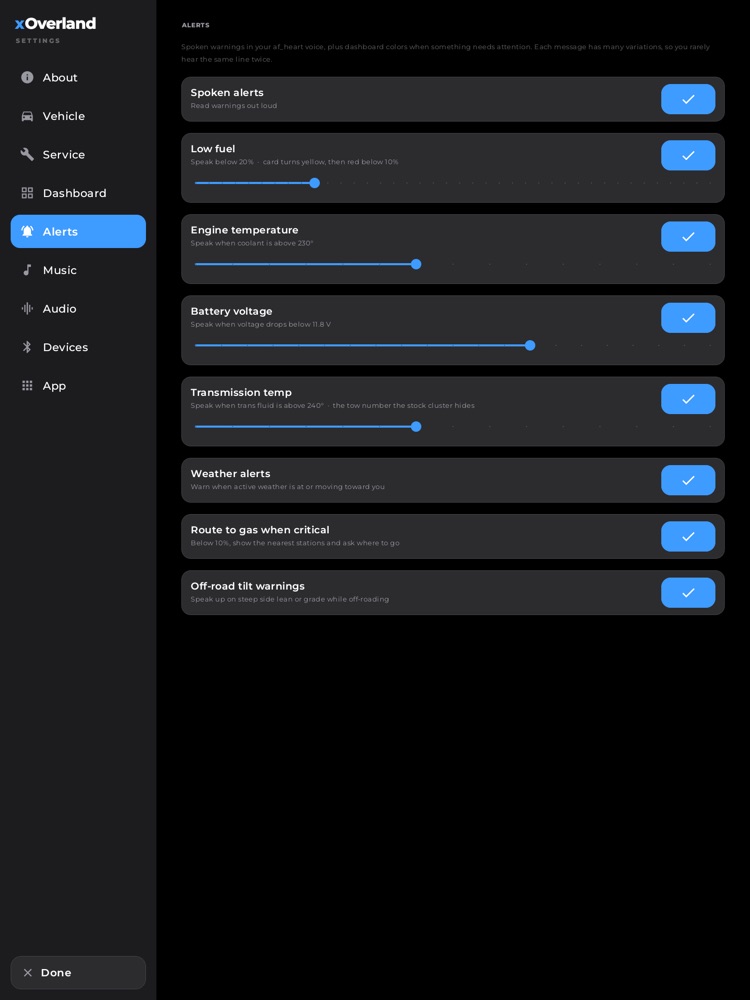
Settings > Alerts: toggle each spoken/visual warning and set its threshold.
xOverland keeps an eye on your truck so you don't have to. When something needs your attention — a low tank, an engine running hot, a check-engine code, weather rolling in, or a steep off-camber lean on the trail — the app speaks up in a calm, natural voice and shows a clear on-screen alert. It's all automatic: you don't push a button to arm it, and you rarely hear the exact same wording twice.
Where to find it: Alerts happen automatically anywhere in the app — you don't open a screen to use them. To turn individual alerts on or off and set their trigger points, go to Header › gear icon › Alerts tab.
When you'll use it: All the time, in the background. The alerts are designed to catch you glancing at the road, not the screen — so the important ones talk. You'll adjust them in Settings once to match how you drive (a tow rig cares about transmission temperature; a daily driver may want an earlier low-fuel nudge), then forget about them.
The screen, part by part
Most of the alerting is invisible until it fires. Here's everything you'll actually see and hear, and where each piece lives.
The spoken voice + caption banner
- When an alert triggers, xOverland speaks it aloud in a warm, human voice. Each type of warning has a whole bank of differently-worded lines, so it never sounds like a robot repeating itself — you'll hear "Fuel is getting low, might want to fill up soon" one day and "The tank is getting down there" another.
- While a line is being spoken, a matching caption banner slides down from the top of the screen with a little equalizer icon and the exact words, so you can read it if you missed the audio or the cabin's loud. It disappears on its own when the voice finishes and never blocks the screen or eats your taps.
- On the Dashboard the caption tucks in below the big clock so it's never in the way; on the road map it doesn't double up the turn banner.
The check-engine takeover (most urgent)
- If your truck reports a new engine trouble code, xOverland plays a warning chime and takes over the whole screen with a red, gently-pulsing alert card. It shows a big CHECK ENGINE header, the trouble code itself (for example P0300), and a plain-language note about what kind of code it is.
- Search this code — opens a web search for that code in the head unit's browser so you can read up on the likely cause and fix.
- Dismiss — clears the full-screen takeover. The code stays flagged in the header until the truck actually reports it fixed; dismissing just gets the big card out of your way.
- This alert is intentionally modal — taps behind it are blocked so you acknowledge it with one of the two buttons.
The header warning indicator
- Whenever one or more engine codes are present, a red warning triangle appears in the top status bar. If there's more than one code, it carries a small number badge.
- Tap it to open the Active warnings panel: a scrollable list of every code currently present, each with its code, its severity label, and a short description. Tap any row to search that code. If everything's healthy, the panel simply says so — no codes, no triangle.
The critical-fuel gas-station prompt
- When fuel gets critically low (below 10%), xOverland speaks up and pops a full-screen Critical Fuel card with a gas-pump icon. It automatically searches for the nearest gas stations and lists them, each showing the station name, brand, and distance in miles.
- Tap any station to start navigating straight to it — the app builds the route and jumps you to the map.
- Try again appears if it couldn't find stations (usually a connection hiccup) and re-runs the search. Not now dismisses the prompt without routing.
- It's smart about failures: if there's no GPS fix or a route can't be built, it keeps the picker up with a short message so you're never left stranded on an empty screen.
The Alerts settings tab — this is your control panel. Each row is a big, easy-to-tap switch, and threshold alerts reveal a slider when switched on:
- Spoken alerts — the master switch for all read-aloud warnings. Off means alerts still show visually (dashboard colors, the header triangle) but stay silent.
- Low fuel — speaks when you drop below your chosen percentage (adjustable from 11% up to 50%). The fuel card also turns yellow as a heads-up, then red below 10%.
- Engine temperature — speaks when coolant climbs above your set temperature (200–270°F).
- Battery voltage — speaks when charging voltage drops below your set level (roughly 10.5–12.5 V).
- Transmission temp — speaks when transmission fluid gets hotter than your set point (210–280°F). This is the tow-critical number the factory cluster doesn't show you.
- Weather alerts — warns when active weather is happening or moving toward you.
- Route to gas when critical — the switch that arms the automatic nearest-station picker described above.
- Off-road tilt warnings — speaks up on steep side lean or grade while you're off-roading.
How to turn an alert on or off
- Tap the gear icon in the header to open Settings.
- Tap the Alerts tab.
- Flip the switch on the row you want (for example, Weather alerts or Off-road tilt warnings). Your choice is saved instantly and remembered next time you start the truck.
How to change when an alert fires
- Open Settings › Alerts.
- Make sure the alert's switch is on — a slider appears underneath it.
- Drag the slider to your preferred trigger point. The row's description updates live to show the exact value (for example "Speak below 25%" or "Speak when coolant is above 235°").
How to silence everything quickly
- Flip Spoken alerts off in Settings › Alerts to mute all read-aloud warnings at once (the visual cues stay).
- On the road-navigation screen there's also a guidance mute button — that same mute silences spoken alerts and turn-by-turn prompts together while you're driving, without changing your Settings.
How to see or look up an active trouble code
- When the red warning triangle is showing in the header, tap it.
- In the Active warnings panel, review the list of present codes.
- Tap a code's row (or Search this code on the takeover card) to open a web lookup for its likely cause and fix.
What you need
The alerting system is always running, but what it can actually warn you about depends on what it can read from the truck:
- Engine data alerts (low fuel, engine temperature, battery voltage, and check-engine codes) need a supported OBD-II adapter (such as an OBDLink MX+) plugged into your truck and paired in the head unit's Bluetooth settings. Until it's connected, these readings aren't available, so those alerts stay quiet.
- Transmission temperature and the true diagnostic codes come through the truck's data connection as well — with a compatible adapter, xOverland reads the transmission fluid temperature the factory dash keeps hidden.
- Critical-fuel gas routing needs a GPS fix and an internet connection to find nearby stations and build a route. Without a connection it'll tell you it couldn't find stations and let you retry.
- Weather alerts use your location and an internet connection to know when precipitation is happening or moving in.
- Off-road tilt warnings work from the head unit's built-in motion sensors — no extra hardware, no connection needed.
- The spoken voice uses pre-recorded lines in the app plus the head unit's built-in text-to-speech, so it works offline.
Tips & good to know
- Alerts never nag. Each warning speaks once when a condition first crosses the line, and it won't repeat until the situation actually recovers past that point. Fuel that hovers right at the threshold, or a grade you're teetering on, won't set off a stream of repeats.
- It greets you by name. Many spoken lines use the name you enter in Settings › Vehicle › Your name — that's also who the boot welcome speaks to. Set it once for a personal touch.
- Nothing talks over the intro. For the first few seconds after the truck powers on, alerts and voice prompts stay silent while the app boots up, so warnings never step on the startup animation. If a real safety alert was waiting, it speaks the moment the system is ready.
- One voice at a time. If you're talking with Scout, alert voices politely wait their turn so two voices never overlap.
- Dismissing a check-engine takeover isn't the same as clearing the code. The big red card goes away, but the truck keeps the code flagged in the header until the underlying fault actually clears — so you won't accidentally forget about it.
- A fault that comes back will alert again. Codes already present when you start up won't ambush you with a takeover, but a code that clears and later returns will re-alert, because that's new information worth knowing.
- Off-road warnings are tuned for a full-size truck. They coach you early — well before anything dramatic — on steep side lean or a sharp climb/descent, with calm, steady guidance rather than an alarm.
- Two low-fuel stages. The low-fuel voice nudges you at your chosen percentage; below 10% it escalates to the critical prompt that offers to route you to gas. The dashboard fuel card mirrors this with yellow, then red.